LNG LogoLNG Logo
    • Enterprise App Development
    • Product Architecture Design
    • Data Engineering & Analytics
    • Cloud Consulting Services
    • AI-Enabled Applications
    • Remote Engineering Teams
    • UI/UX Design
    • Data Migration
    • Big Data
    • DevOps Solutions
    • Banking
    • Ecommerce
    • Fintech
    • Healthcare
    • Hospitality
    • Manufacturing
    • Telecom
    • Travel
    • Education
    • Cross-Platform & Web Development
    • Digital Experience Platform
    • Enterprise Technologies
    • Modern Frontend Interface
    • About Us
    • Blog
    • Our Team
    • Careers
    • Success Stories
Let's Talk !

Deploying Sitecore XM Cloud on Vercel | L&G Consultancy

By: Koushik MukherjeeJune 25, 2025
In my previous blog, I discussed how we can deploy a Sitecore XM Cloud frontend built with Next.js to Netlify.
Today, we’ll explore how to deploy the XM Cloud frontend on Vercel—a cloud-based platform officially recommended by Sitecore for Jamstack-based Next.js deployments.
In this post, we’ll walk through the steps to deploy a website integrated with Sitecore XM Cloud using Vercel.

Prepare the GitHub Repository

  1. Create a public GitHub repository and commit/push your code.

  2. Set environment-specific values in the .env file.

  3. If you’ve made content or layout changes in your local XM environment, use the Sitecore CLI to publish those changes and verify that the content is available on Experience Edge.

  4. In your XM Cloud instance, publish all content and layout changes you want reflected on the live site.

Connect Your GitHub Repository to Vercel

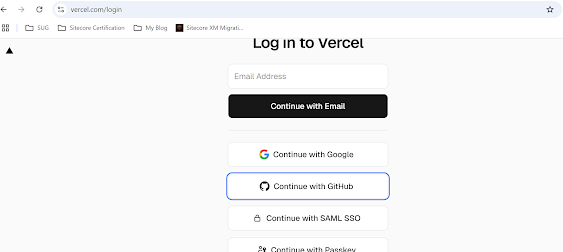
  1. Sign in to Vercel at vercel.com.

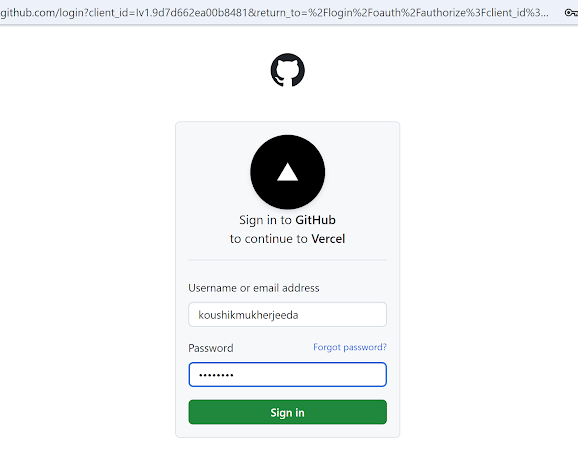
  2. You can log in using GitHub authentication, or navigate to:
    Profile Icon → Account Settings → Authentication to connect GitHub manually.

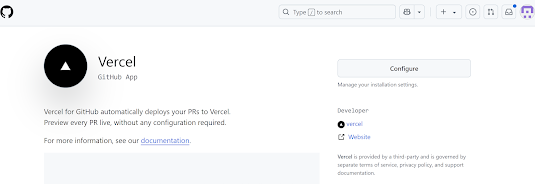
  3. It is recommended to install the Vercel GitHub App by visiting: https://github.com/apps/vercel

    • Click on Configure

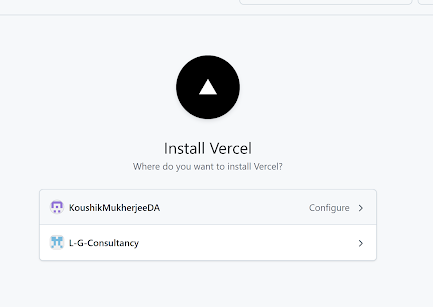
    • Select Github Account

    • Grant access to your GitHub account and repositories.
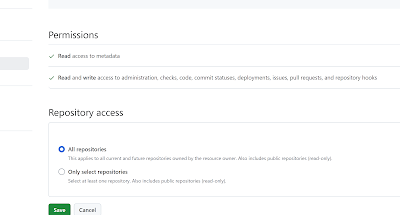
Skipping above steps may lead to deployment issues.

Deployment Setup in Vercel

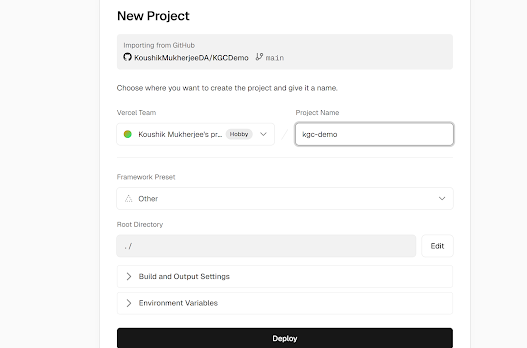
  1. Go to the Vercel Dashboard → Add New → Project

  2. Click “Continue with GitHub”, then select your GitHub account and the desired repository.
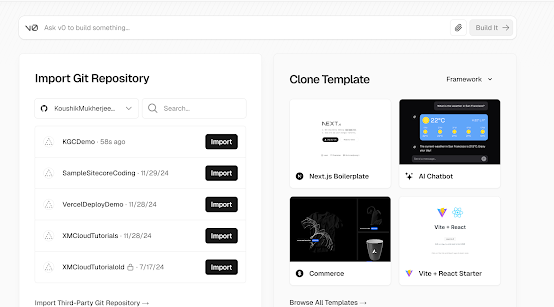
  3. Provide a project name.

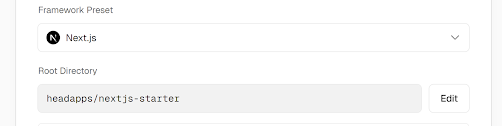
  4. Choose the framework preset — in our case, select Next.js.
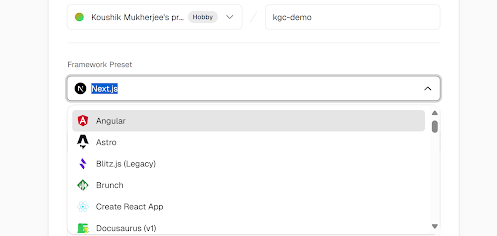
  5. Set the Root Directory to headapps/nextjs-starter.
6. Add Environment Variables

Manually add the following environment variables as key-value pairs (or import from .env):
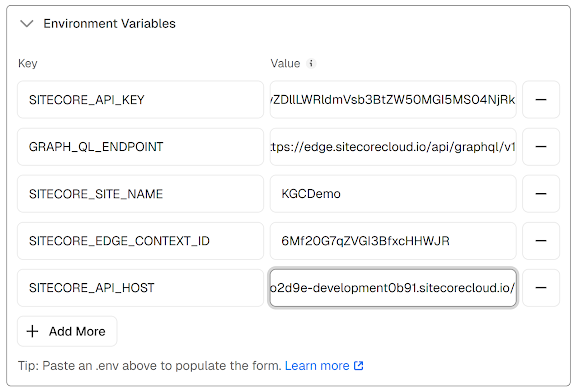
PUBLIC_URL
GRAPH_QL_ENDPOINT
SITECORE_API_HOST
SITECORE_SITE_NAME
SITECORE_API_KEY
SITECORE_EDGE_CONTEXT_ID


7. Once done, click “Deploy”.

Live Deployment


  • Vercel will now show the deployment progress in real-time.
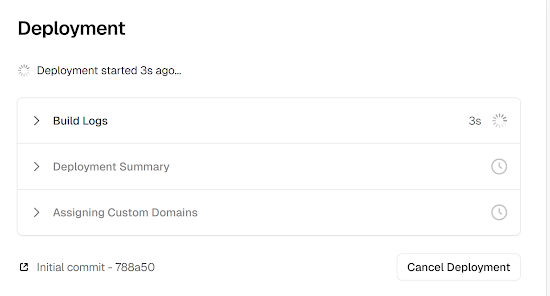
  • It automatically optimizes your Next.js app, including static generation and serverless functions.

  • Once deployment completes, Vercel provides an instant preview URL for your live app.
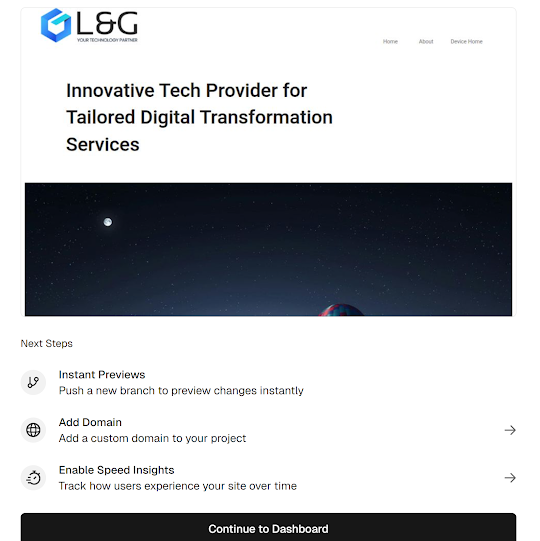
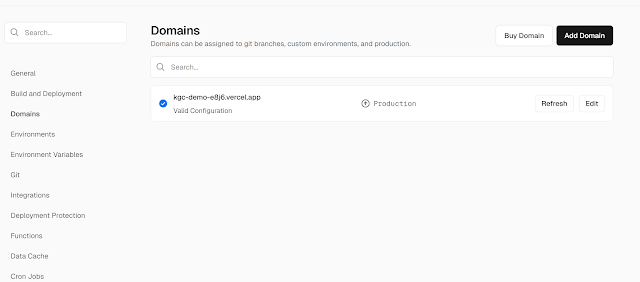
  • You can also configure a custom domain via the “Add Domain” page in the dashboard.
Conclusion

Deploying a Sitecore XM Cloud integrated Next.js application on Vercel is a straightforward and efficient process. With Vercel’s seamless GitHub integration, real-time deployment previews, and built-in support for modern frameworks like Next.js, it offers a developer-friendly and scalable solution for headless CMS deployments. By properly configuring environment variables and deployment settings, you can ensure a smooth and automated workflow for your frontend delivery.


References

Vercel and Sitecore XM Cloud Integration
Manage a Vercel connection

Continuous DeploymentJamstack DeploymentNext.js HostingServer Side RenderingSitecore Developer TipsSitecore Next.js IntegrationSitecore XM CloudStatic Site GenerationVercel DeploymentVercel Next.js
Two CMSs, One Website: Managing Routing During WordPress to Sitecore MigrationJune 17, 2026Mastering Identity Resolution in Sitecore CDP: Anonymous to Known VisitorsMay 25, 2026

Let's Innovate, Collaborate, Build Your Product Together!

We turn your unique ideas into exceptional results. Contact us to
scale your tech capacity and accelerate business growth.

Let's Talk!
Where We Are

Our Global Presence

Delivering world-class digital solutions from three strategic locations across the globe.

South AfricaSouth Africa
ZACape Town

4th Floor, Mutual Park, Pinelands, Capetown, South Africa - 7405.

UAEUAE
AEDubai

FZCO 421, Dubai Commercity, Dubai, United Arab Emirates.

IndiaIndia
INAmritsar

SCO 6, Floor - 5, Dua Square, Ranjit Avenue, Block - B, Amritsar, Punjab, India - 143002

Logo

AI-Fuelled software agency, helping business professionals to thrive. Trusted by global leaders.

Company

  • About Us
  • Blog
  • Our Term
  • Careers
  • Success Stories

Services

  • AI-Enabled Applications
  • Big Data
  • Cloud Consulting Services
  • Data Engineering & Analytics
  • Data Migration
  • DevOps Solutions
  • Enterprise Application Development
  • Product Architecture Design
  • Remote Engineering Teams
  • UI/UX Design

Industries

  • Banking
  • Ecommerce
  • Fintech
  • Healthcare
  • Hospitality
  • Manufacturing
  • Telecom
  • Travel & Transport
  • Education

Technologies

  • Cross-Platform and Web Development
  • Digital Experience Platform
  • Enterprise Technologies
  • Modern Frontend Interface
Logo

AI-Fuelled software agency, helping business professionals to thrive. Trusted by global leaders.

Company
  • About Us
  • Blog
  • Our Term
  • Careers
  • Success Stories
Services
  • AI-Enabled Applications
  • Big Data
  • Cloud Consulting Services
  • Data Engineering & Analytics
  • Data Migration
  • DevOps Solutions
  • Enterprise Application Development
  • Product Architecture Design
  • Remote Engineering Teams
  • UI/UX Design
Industries
  • Banking
  • Ecommerce
  • Fintech
  • Healthcare
  • Hospitality
  • Manufacturing
  • Telecom
  • Travel & Transport
  • Education
Technologies
  • Cross-Platform and Web Development
  • Digital Experience Platform
  • Enterprise Technologies
  • Modern Frontend Interface

Copyright © 2026 L&G Consultancy. All Rights Reserved.
Privacy PolicyTerms and Conditions
Company Image