LNG LogoLNG Logo
    • Enterprise App Development
    • Product Architecture Design
    • Data Engineering & Analytics
    • Cloud Consulting Services
    • AI-Enabled Applications
    • Remote Engineering Teams
    • UI/UX Design
    • Data Migration
    • Big Data
    • DevOps Solutions
    • Banking
    • Ecommerce
    • Fintech
    • Healthcare
    • Hospitality
    • Manufacturing
    • Telecom
    • Travel
    • Education
    • Cross-Platform & Web Development
    • Digital Experience Platform
    • Enterprise Technologies
    • Modern Frontend Interface
    • About Us
    • Blog
    • Our Team
    • Careers
    • Success Stories
Let's Talk !

Creating Custom Personalization Rules in Sitecore

By: Koushik MukherjeeApril 8, 2024

In my previous blog, I detailed the setup and management of the out-of-the-box (OOTB) personalization feature within a component. Today, I delve deeper into building and creating custom personalization rules to meet specific business requirements. Sitecore’s architecture offers the flexibility needed for this scenario, allowing for the extension and implementation of custom rules as required. To illustrate, we’ll focus on creating a custom rule that alters content displayed to site visitors based on a “querystring” parameter value.

To implement custom personalization, follow these steps:

Step 1: Navigate to ” /sitecore/system/Settings/Rules/Definitions/Tags ” and right-click on “Tags” to add a new customized Tag (e.g., QueryString Name Value Tag)
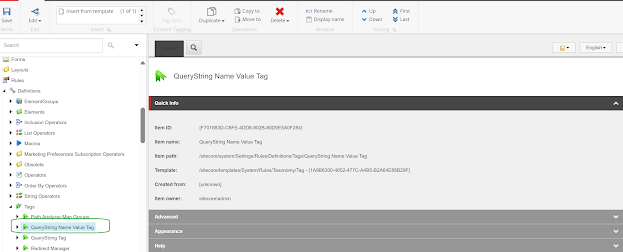
QueryString Name Value Tag interface

Step 2: Under ” /sitecore/system/Settings/Rules/Definitions/Elements “, create a custom Element folder (e.g., QueryString Name Value Tag) and add a new condition within it. Set the Text and Type properties of the condition.
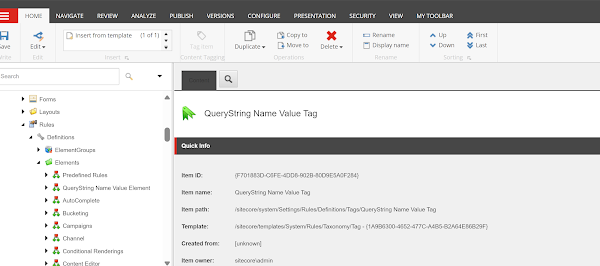
QueryString Name Value Tag details

Text property: Provide a descriptive condition for the rule visible to content editors.

Type Property: Specify your class name along with its namespace followed by the assembly name, where the business logic for your personalization rule resides.
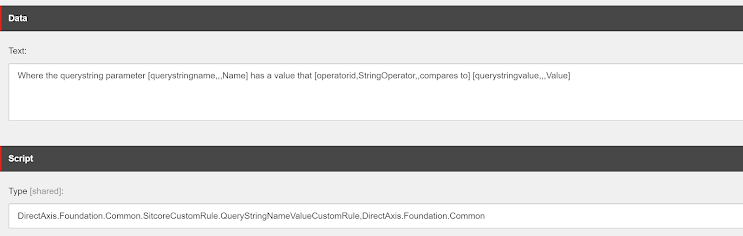
Query string rule details

Step 3: Add the created tag to the default tag, within the Tags property of the element folder.
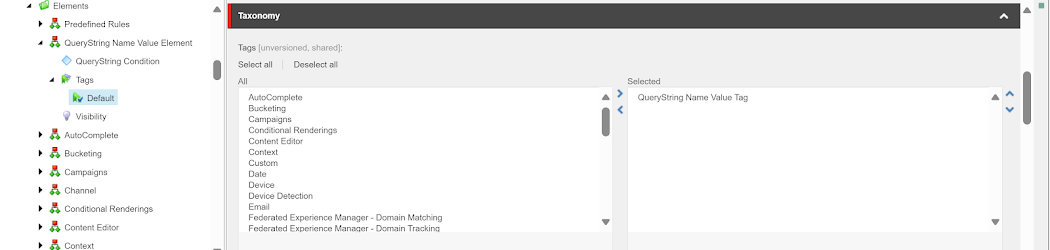
Query string taxonomy setup

Step 4: Proceed to ” /sitecore/system/Settings/Rules/Conditional Renderings ” to include this tag in conditional rendering. This ensures the new rule is accessible in the rule editor for content editors to personalize components.
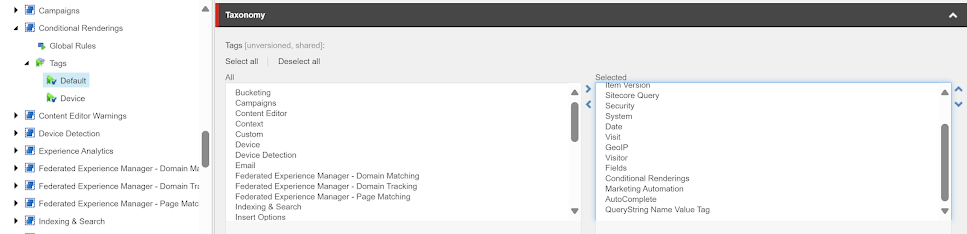
Sitecore taxonomy showing selected tags

Step 5: Next, write the business logic for your personalization rule as required. You can download the sample code from this link , file name is QueryStringNameValueCustomRule.cs
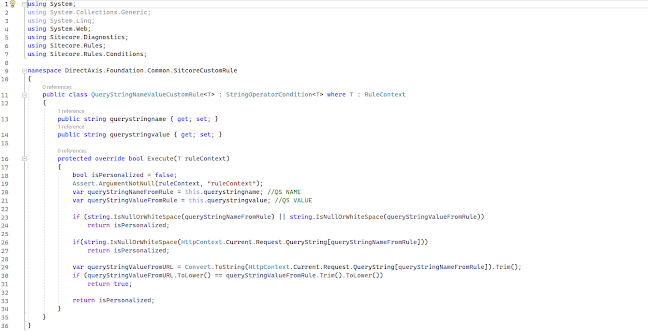
C# query string handling code

Step 6: In the Experience Editor, open a page, select the component for personalization, and click “Personalize.” Then, click “New Condition” and add the rule according to your specifications. Click “Edit” to define the rule, where you’ll find the custom rule you created. Select the custom rule, assign values as needed, and publish the page.
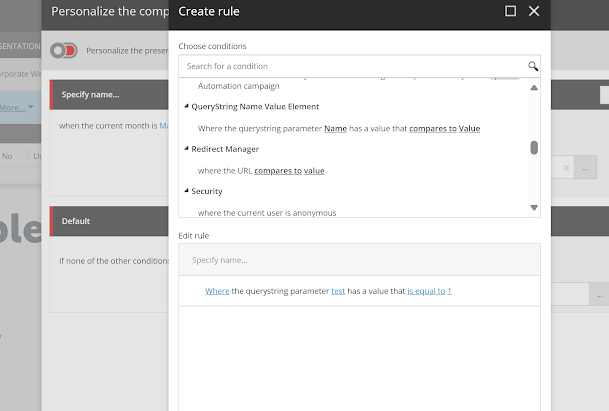
Create rule window

Step 7: Finally, on the public site, set the querystring as expected, and witness the personalized content tailored to your specifications.
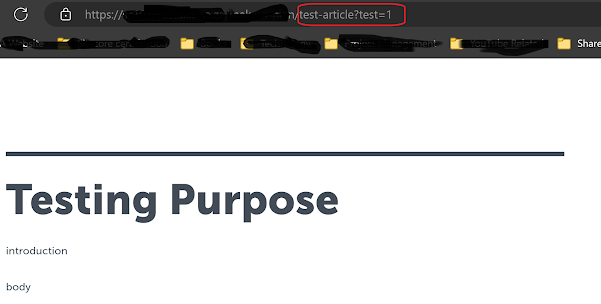
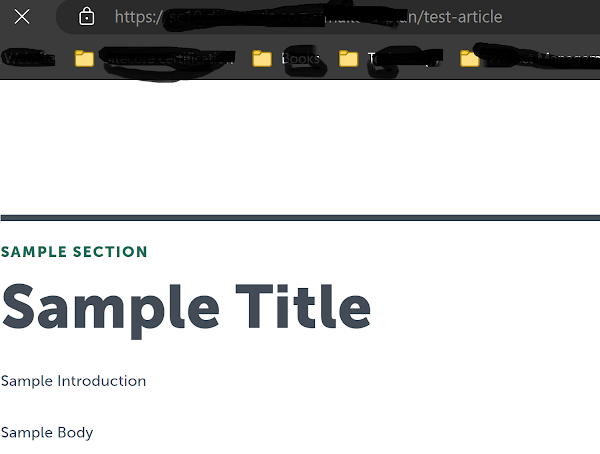
Page with query string in URL

Sample article webpage


I took references from this Sitecore Documentation Link while implementing and write down this blog.

Happy Sitecoring!


PersonalizationSitecore BasicsSitecore Custom PersonalizationSitecore Personalization
Two CMSs, One Website: Managing Routing During WordPress to Sitecore MigrationJune 17, 2026Mastering Identity Resolution in Sitecore CDP: Anonymous to Known VisitorsMay 25, 2026

Let's Innovate, Collaborate, Build Your Product Together!

We turn your unique ideas into exceptional results. Contact us to
scale your tech capacity and accelerate business growth.

Let's Talk!
Where We Are

Our Global Presence

Delivering world-class digital solutions from three strategic locations across the globe.

South AfricaSouth Africa
ZACape Town

4th Floor, Mutual Park, Pinelands, Capetown, South Africa - 7405.

UAEUAE
AEDubai

FZCO 421, Dubai Commercity, Dubai, United Arab Emirates.

IndiaIndia
INAmritsar

SCO 6, Floor - 5, Dua Square, Ranjit Avenue, Block - B, Amritsar, Punjab, India - 143002

Logo

AI-Fuelled software agency, helping business professionals to thrive. Trusted by global leaders.

Company

  • About Us
  • Blog
  • Our Term
  • Careers
  • Success Stories

Services

  • AI-Enabled Applications
  • Big Data
  • Cloud Consulting Services
  • Data Engineering & Analytics
  • Data Migration
  • DevOps Solutions
  • Enterprise Application Development
  • Product Architecture Design
  • Remote Engineering Teams
  • UI/UX Design

Industries

  • Banking
  • Ecommerce
  • Fintech
  • Healthcare
  • Hospitality
  • Manufacturing
  • Telecom
  • Travel & Transport
  • Education

Technologies

  • Cross-Platform and Web Development
  • Digital Experience Platform
  • Enterprise Technologies
  • Modern Frontend Interface
Logo

AI-Fuelled software agency, helping business professionals to thrive. Trusted by global leaders.

Company
  • About Us
  • Blog
  • Our Term
  • Careers
  • Success Stories
Services
  • AI-Enabled Applications
  • Big Data
  • Cloud Consulting Services
  • Data Engineering & Analytics
  • Data Migration
  • DevOps Solutions
  • Enterprise Application Development
  • Product Architecture Design
  • Remote Engineering Teams
  • UI/UX Design
Industries
  • Banking
  • Ecommerce
  • Fintech
  • Healthcare
  • Hospitality
  • Manufacturing
  • Telecom
  • Travel & Transport
  • Education
Technologies
  • Cross-Platform and Web Development
  • Digital Experience Platform
  • Enterprise Technologies
  • Modern Frontend Interface

Copyright © 2026 L&G Consultancy. All Rights Reserved.
Privacy PolicyTerms and Conditions
Company Image