In my previous blog, I discussed how to style a component, modify elements, and customize themes. In this post, I’ll focus on creating different versions of a component.
In XM Cloud Components, a component can have multiple visual representations, known as component versions. These versions allow us to personalize components for specific audiences in Pages. Additionally, versions and breakpoints can be used to create responsive bundles, enabling components to adjust their appearance based on screen width.
Adding a Version to a Component
To add a new version to a component:
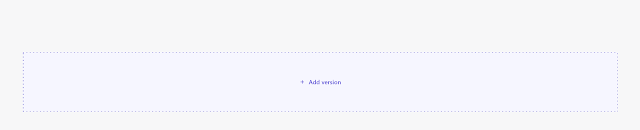

- In the Components Builder, scroll to the bottom of the page and click Add version.
- If this version is intended for responsive design, specify the breakpoints at which it should be displayed.
Duplicating a Component Version
Once you’ve styled and configured a component, you can duplicate it to easily create versions with different layouts without starting from scratch.
To duplicate a component version:
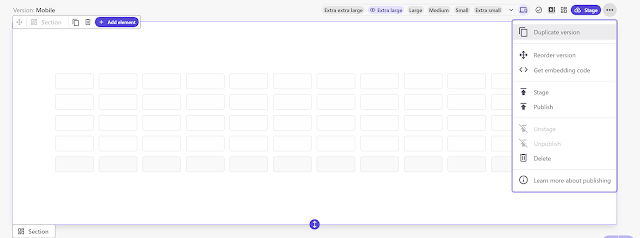
- In the Component Builder, click Actions at the top-right corner of the component.
- Select Duplicate version.
- The duplicated version will appear below the original component.
Deleting or Archiving a Component Version
To delete a component version:
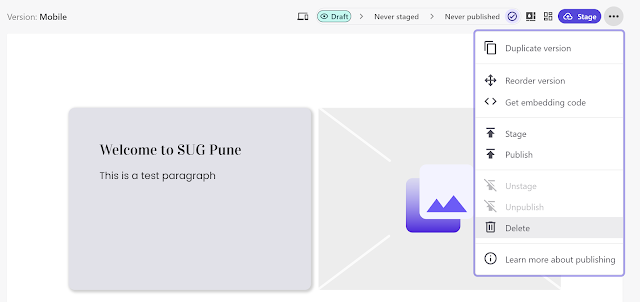
- In the Components Builder, click Actions on the version you wish to remove.
- Click Delete.
If the version has been staged or published, it will be archived instead of deleted, allowing for future restoration.
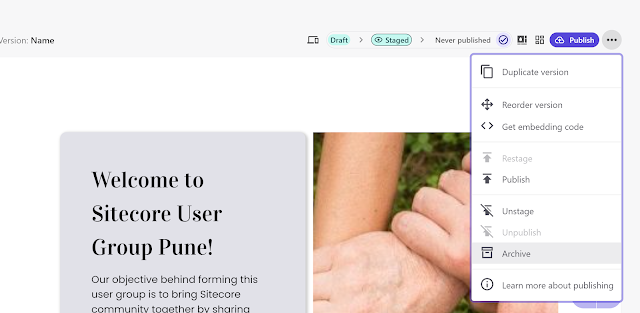
To restore an archived version:
- Scroll to the bottom of the component versions to locate the archived versions.
- Click Show archived versions.
- Click Unarchive on the version you wish to restore.
Working with versions for responsive design
To create different renderings for various screen sizes, you need to create a new version for each size. You can speed up this process by duplicating an existing version. Any adjustments made to a specific version will apply across all the selected breakpoint sizes.
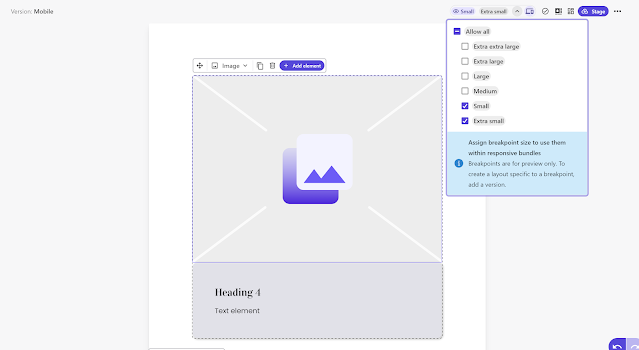
Steps to Create a Version for a Defined Breakpoint or Group of Breakpoints:
- In the Components Builder, duplicate the component by clicking Duplicate version as many times as needed to create the required versions.
- For each version, click Breakpoint settings.
- Select the breakpoint(s) you want to assign to that version. You must choose at least one breakpoint from the drop-down menu. For example, you can create a version called Mobile devices for the extra small and small breakpoints, one called Tablets for the medium breakpoint, and one called Desktops for the large, extra large, and extra extra large breakpoints.
Default Breakpoints Available:
- Extra Extra Large: More than 1400 px
- Extra Large: 1200 px to 1400 px
- Large: 992 px to 1199 px
- Medium: 768 px to 991 px
- Small: 576 px to 767 px
- Extra Small: Less than 576 px
Responsive bundles
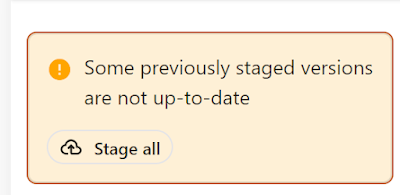
- Once you have completed the designs, click Stage above each version you wish to include in the bundle. Alternatively, to stage all versions of the component at once, click outside of the versions to open the Overview pane on the right-hand side, then select Stage all.
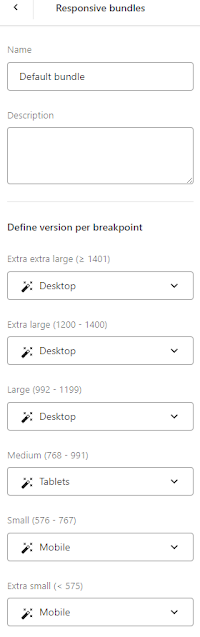
- To ensure the correct breakpoints are assigned to the right versions, go to the Overview pane and click Default bundle in the Responsive bundles section. If necessary, you can assign different versions to specific breakpoints by selecting the appropriate version from the drop-down list. Note that only staged versions designed for the relevant breakpoints will be available to select.
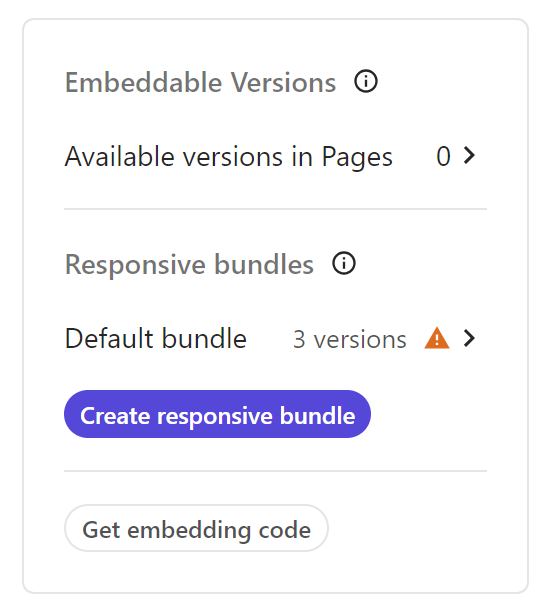
- If you want specific versions to be available as stand-alone components in Pages (without using a responsive bundle), go to the Overview pane. In the Specific versions section, click Available versions in Pages, then select Allow to use as a specific version.
- To use the responsive bundle or a specific version in a webpage, go to Pages and drag the component into the desired placeholder. In the right-hand pane, select either the responsive bundle or the specific version you want to use. If you are using a custom page builder, you can also click Get the embedding code to use the component.