The purpose of this blog is to explain how to set up custom Solr core for use with Sitecore. Before starting this we should have both Sitecore and solr installed on the system. All the solr cores are created by default in context with sitecore at the time of sitecore installation.Here we will see how manually we can achieve to create custom solr core in sitecore 10.1
Configure sitecore to use solr
Below changes will enable sitecore to use solr :
- Mentioned the search provider in web config: Go to the webroot of the sitecore instance and open the web config and populate the below settings.
<add key=”search:define” value=”Solr” />
- Update the solr url in the connection string of your sitecore instance as mentoioned below
<add name=”solr.search” connectionString=”https://localhost:8990/solr” />
Creating Cores in Solr
We will create a new core named sitecore_Custom_index into solr directory, Please follow the below steps:
Assuming your [SOLR_DIR] is path where you have installed the solr.
- Create a new folder sitecore_Custom_index inside the solr installed directory [SOLR_DIR]/server/solr
- Copy the conf folder from below Path:
[SOLR_DIR]/server/solr/configsets/_default folder
To
[SOLR_DIR]/server/solr/sitecore_Custom_index folder
- Create a file named core.properties in the folder you created ([SOLR_DIR]/server/solr/sitecore_Custom_index
- Edit the core.properties file and specify below values:
name=[CORE_NAME]
config=solrconfig.xml
update.autoCreateFields=false
dataDir=data
Sitecore Patch file for custom index
Create patch file in sitecore for the custom core we created in solr and paste it to the [sitecorewebroot]/App_Config/Include/Foundation
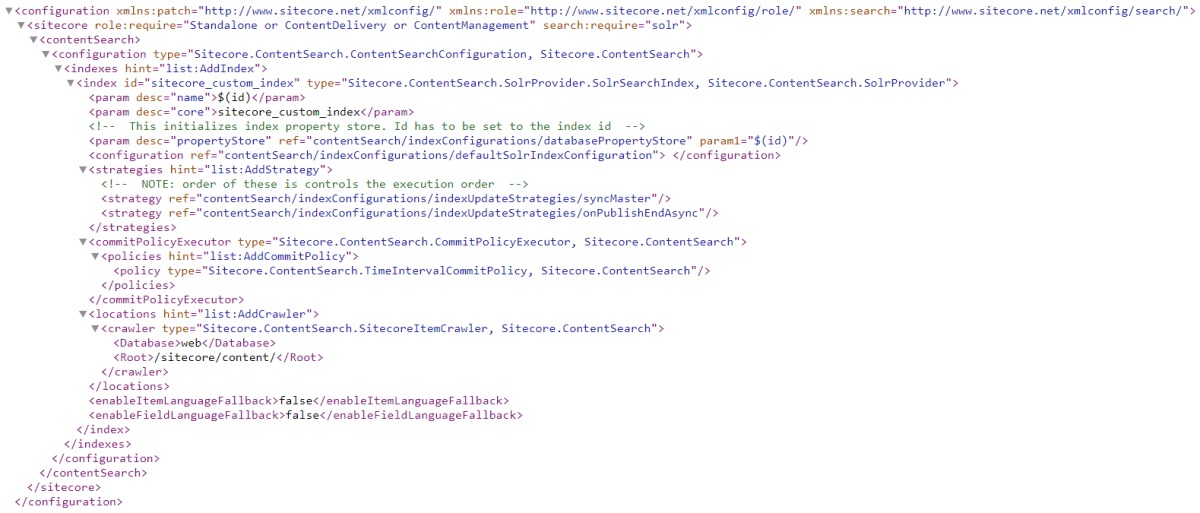
<?xml version=”1.0″ encoding=”utf-8″?>
<configuration xmlns:patch=”http://www.sitecore.net/xmlconfig/” xmlns:role=”http://www.sitecore.net/xmlconfig/role/” xmlns:search=”http://www.sitecore.net/xmlconfig/search/”>
<sitecore role:require=”Standalone or ContentDelivery or ContentManagement” search:require=”solr”>
<contentSearch>
<configuration type=”Sitecore.ContentSearch.ContentSearchConfiguration, Sitecore.ContentSearch”>
<indexes hint=”list:AddIndex”>
<index id=”sitecore_custom_index” type=”Sitecore.ContentSearch.SolrProvider.SolrSearchIndex, Sitecore.ContentSearch.SolrProvider”>
<param desc=”name”>$(id)</param>
<param desc=”core”>sitecore_custom_index</param>
<!– This initializes index property store. Id has to be set to the index id –>
<param desc=”propertyStore” ref=”contentSearch/indexConfigurations/databasePropertyStore” param1=”$(id)” />
<configuration ref=”contentSearch/indexConfigurations/defaultSolrIndexConfiguration”>
</configuration>
<strategies hint=”list:AddStrategy”>
<!– NOTE: order of these is controls the execution order –>
<strategy ref=”contentSearch/indexConfigurations/indexUpdateStrategies/syncMaster” />
<strategy ref=”contentSearch/indexConfigurations/indexUpdateStrategies/onPublishEndAsync” />
</strategies>
<commitPolicyExecutor type=”Sitecore.ContentSearch.CommitPolicyExecutor, Sitecore.ContentSearch”>
<policies hint=”list:AddCommitPolicy”>
<policy type=”Sitecore.ContentSearch.TimeIntervalCommitPolicy, Sitecore.ContentSearch” />
</policies>
</commitPolicyExecutor>
<locations hint=”list:AddCrawler”>
<crawler type=”Sitecore.ContentSearch.SitecoreItemCrawler, Sitecore.ContentSearch”>
<Database>web</Database>
<Root>/sitecore/content/</Root>
</crawler>
</locations>
<enableItemLanguageFallback>false</enableItemLanguageFallback>
<enableFieldLanguageFallback>false</enableFieldLanguageFallback>
</index>
</indexes>
</configuration>
</contentSearch>
</sitecore>
</configuration>
Configure Manage Schema
Below steps will configure the managed schema. Open the managed scheme file from the directory [SOLR_DIR]/server/solr/sitecore_Custom_index/conf and make the below changes:
- Change the value in the <uniqueKey>id</uniqueKey> node to _uniqueid
- In the fields section, add field configuration for _uniqueid:
<field name=”_uniqueid” type=”string” indexed=”true” required=”true” stored=”true”/>
Restart Solr
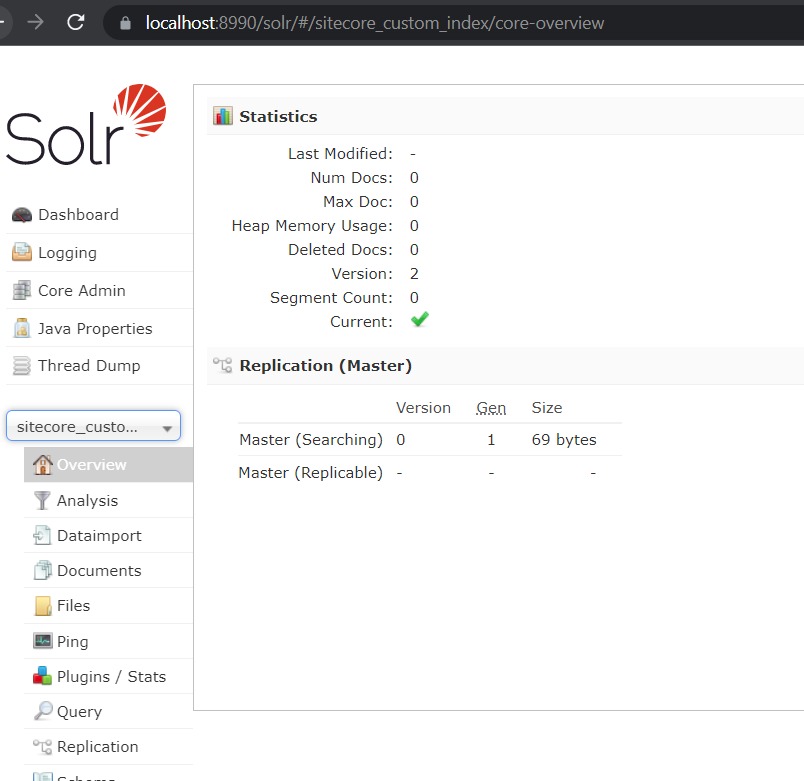
The newly created sitecore_custom_index core created in solr physical directory comes in the collection of solr admin panel interface as mentioned below :
Populate Managed Schema
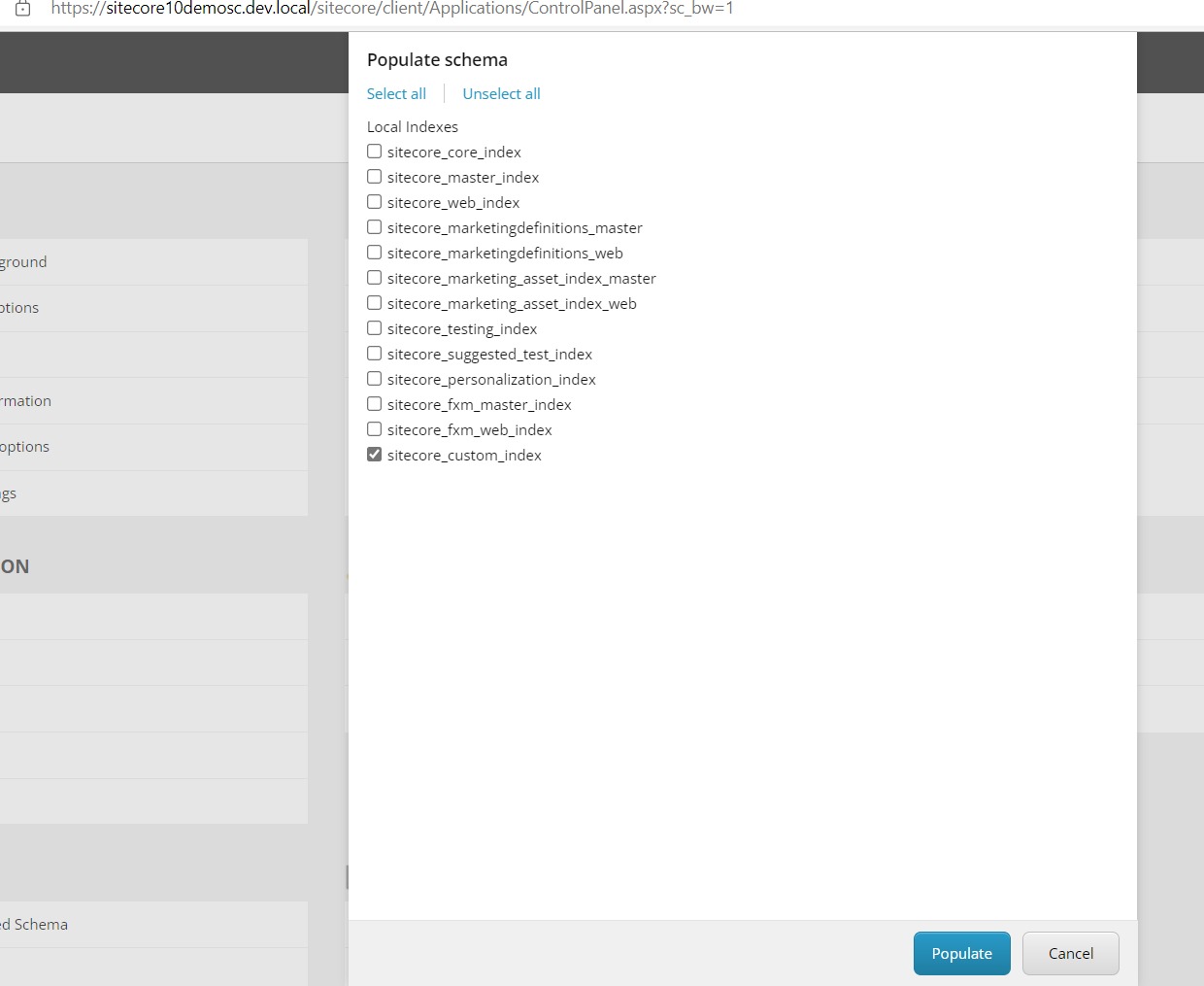
Go the sitecore instance control panel and click populate schema from index section. This populate managed schema file based on the content.
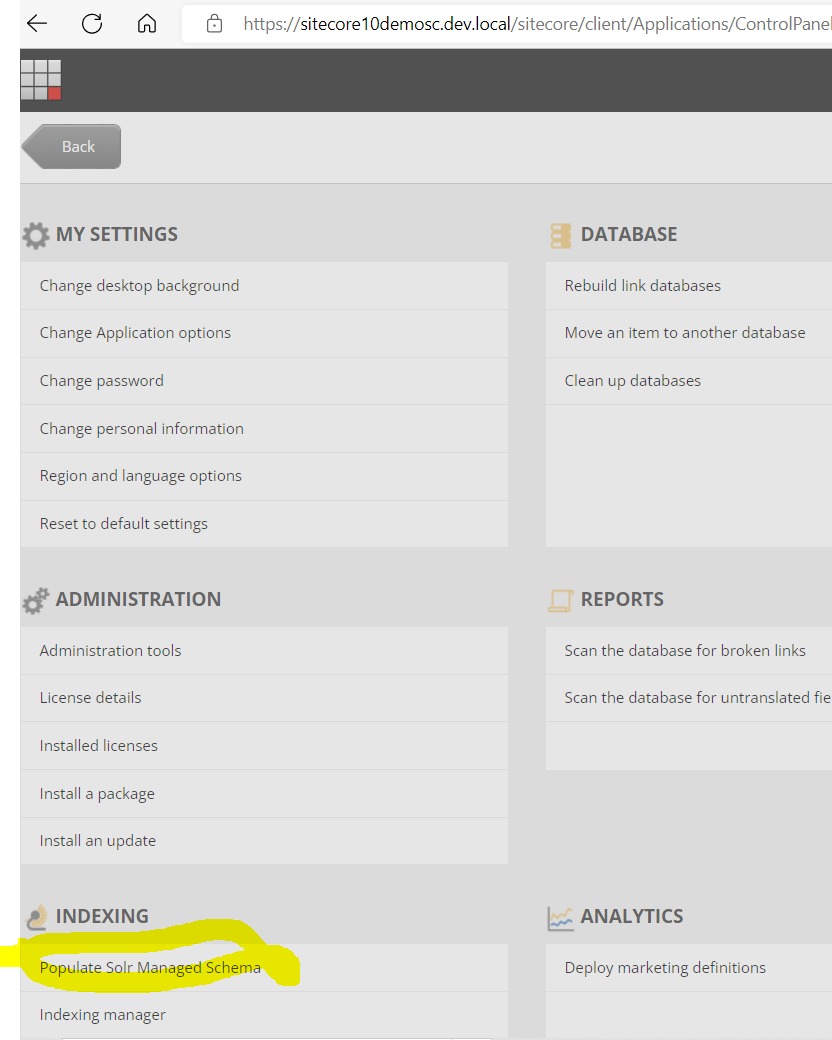
Select the newly created core and click the populate button,this populate the managed schema file as below
Index the sitecore_Custom_index
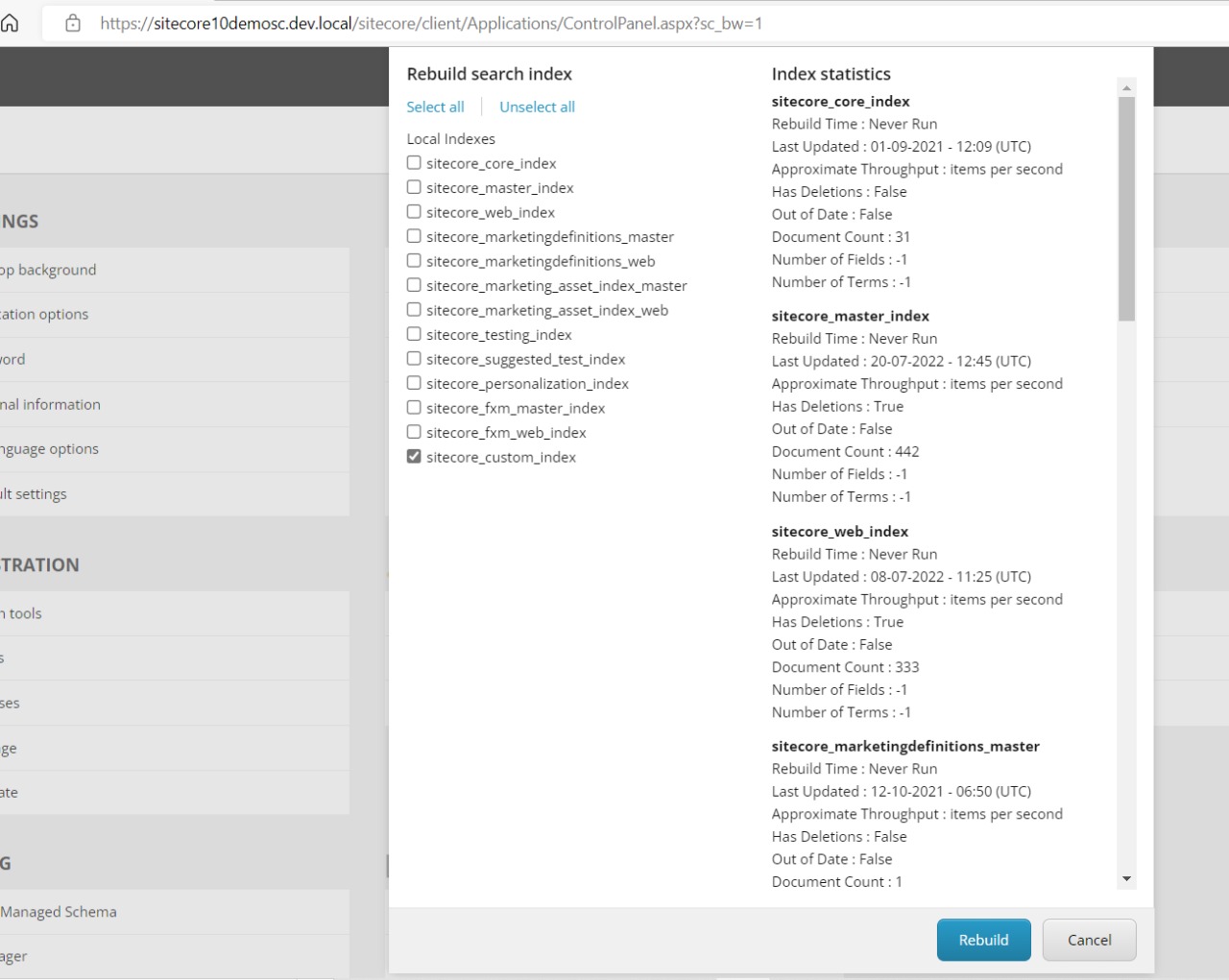
Again go the sitecore instance control panel and click index manager from index section. Only select the sitecore_Custom_core you created and click the rebuild button. This will index your custom core and when we see the solr interface, all the content item inside the item path which we mentioned in the patch file is indexed.
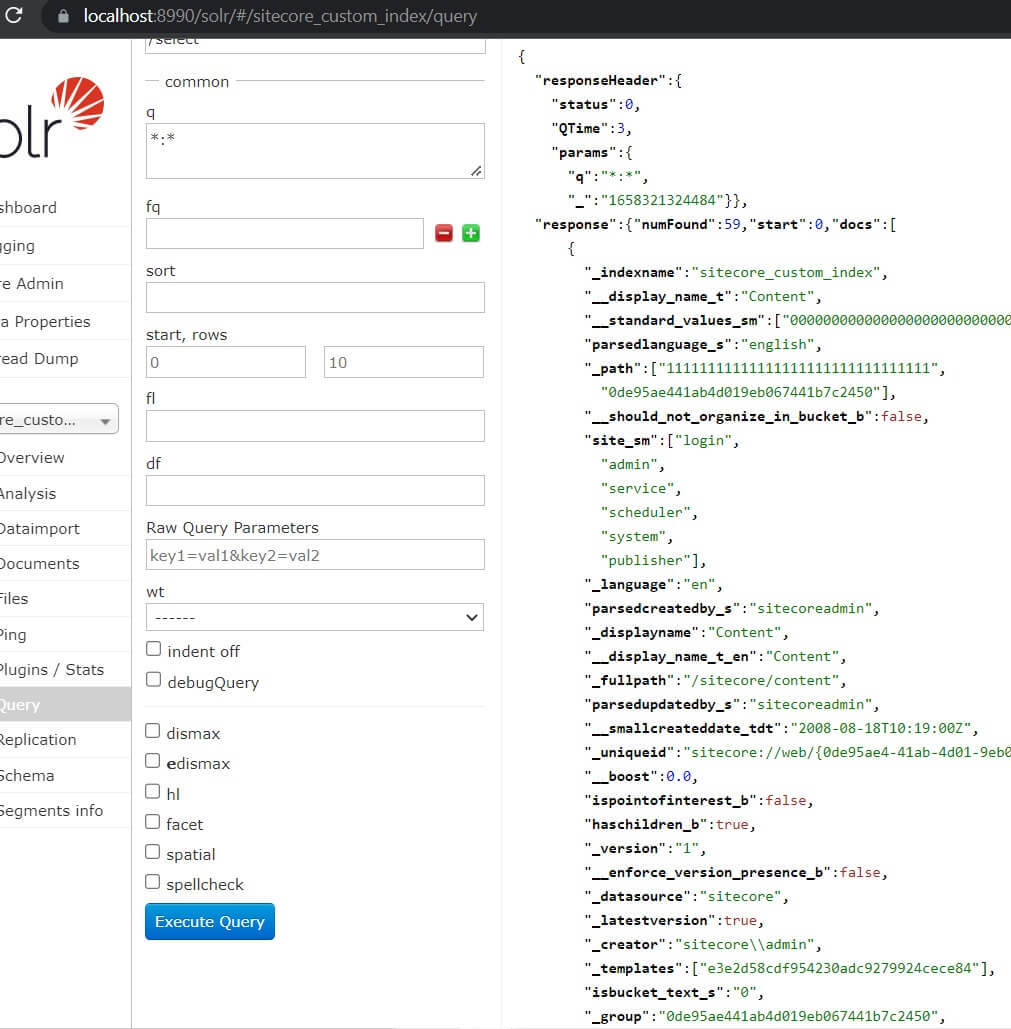
Refresh your solr interface and you can see the content items are indexed as below: