LNG LogoLNG Logo
    • Enterprise App Development
    • Product Architecture Design
    • Data Engineering & Analytics
    • Cloud Consulting Services
    • AI-Enabled Applications
    • Remote Engineering Teams
    • UI/UX Design
    • Data Migration
    • Big Data
    • DevOps Solutions
    • Banking
    • Ecommerce
    • Fintech
    • Healthcare
    • Hospitality
    • Manufacturing
    • Telecom
    • Travel
    • Education
    • Cross-Platform & Web Development
    • Digital Experience Platform
    • Enterprise Technologies
    • Modern Frontend Interface
    • About Us
    • Blog
    • Our Team
    • Careers
    • Success Stories
Let's Talk !

Installing Sitecore 10.3 on Docker: Step-by-Step Guide

By: Koushik MukherjeeFebruary 6, 2023

In this document, we will learn how to setup Sitecore 10.3 on docker desktop in Windows 11. We shall briefly cover the step-by-step process and overview of Sitecore 10.3 setup.
While doing the installation in my windows, I followed Installation Guide for Developer Workstation with Containers. Thanks, Sitecore Team!

Prerequisites –

To setup Sitecore 10.3 on docker, we shall need the following –

  • Docker Desktop Installed on Windows Desktop
  • Docker Desktop support for windows containers
  • 16 GB of RAM
  • Approximately 50GB of free disk space for Sitecore container images. SSD storage is highly recommended.
  • The default Sitecore container configuration uses specific ports. To avoid any conflicts, we should ensure the following ports are not being used by another process: 443, 8079, 8081, 8984, and 14330

To check the prerequisites for Sitecore 10.3 installation, please check the below link –
Support Information – Sitecore compatibility table for Sitecore XP 9.0 and later

Setup Files –

  • Docker-compose.yaml
  • Env file
  • compose-init.ps1

Installation Steps:

  1. Setup docker desktop
    Run docker, then right click on the docker icon in the right bottom panel, select “Switch to Windows containers”.
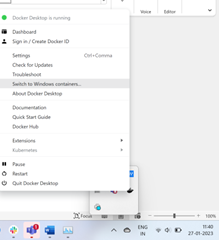
    Docker Desktop menu on Windows taskbar
  2. Create a new folder D:\sc1030_install and download and unzip Container Deployment Package
  3. Open Compose-init.ps1 file from D:\sc1030_install\SitecoreContainerDeployment.10.3.0.008463.1135\compose\ltsc2019\xp0 folder and make the below changes. Please provide correct MS SQL password.
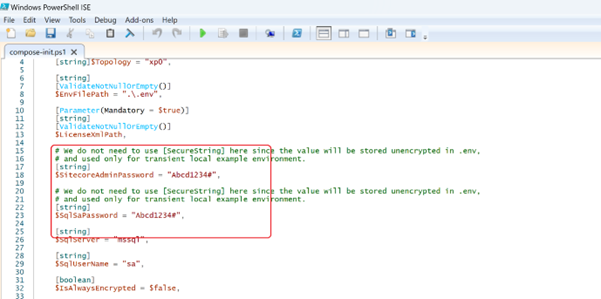
    PowerShell script with unencrypted passwords
  4. Please copy License file in D:\license\license.xml
  5. Open PowerShell as administrator. Change the directory to D:\sc1030_install\SitecoreContainerDeployment.10.3.0.008463.1135\compose\ltsc2019\xp0
  6. Execute .\compose-init.ps1 -LicenseXmlPath C:\license\license.xml
    This script will set up all the environment variables in .env file.
  7. Execute Docker-compose up – detach
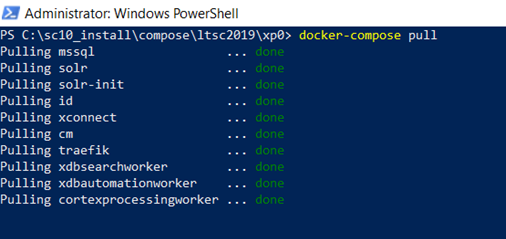
    This should pull images from Sitecore Docker Repository
    After pull, extraction of images is complete. The containers will be deployed.
    The scripts should run for around 30 mins depending on the network.
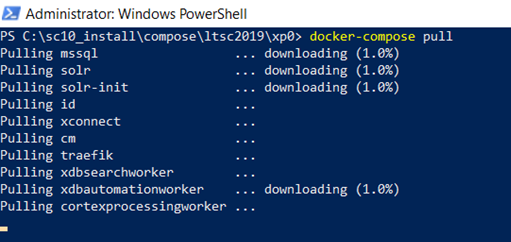
    SitecoreDockerSetup Sitecore Setup in Docker Step by Step
  8. Open Docker Dashboard and you should see Sitecore-XP0 running.
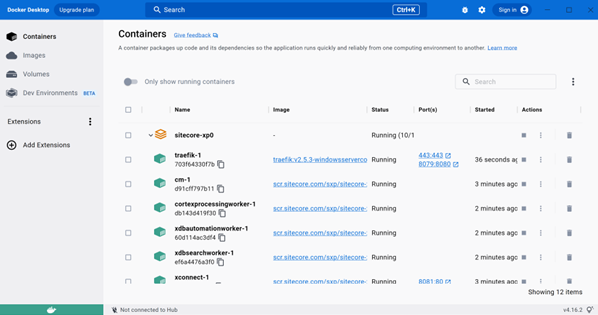
    Docker Desktop
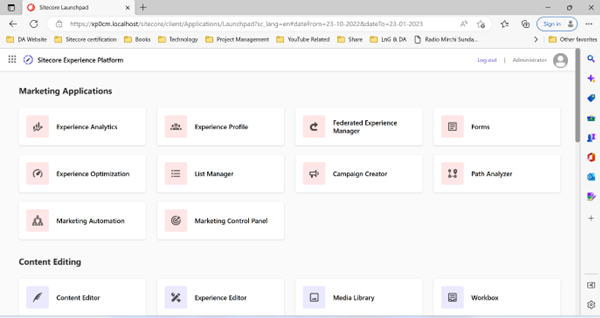
  9. Browse the site.
    Sitecore 10 Site

FAQ

How to get into wwwroot of docker containers?

Execute “Docker ps” to get the list of containers and note the container name.
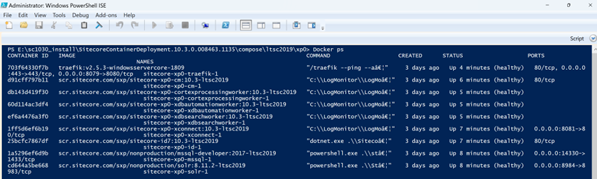
Docker Root
Now execute “docker exec -it $containerName.

How to log into SQL Server using SSMS?

Note down the port number of SQL Container. Now open SSMS, Enter “localhost, portNumber” in server and login with sa credentials.



Sitecore 10.3Sitecore 10.3 SetupSitecore SeriesSitecore Setup in Docker Desktop
Two CMSs, One Website: Managing Routing During WordPress to Sitecore MigrationJune 17, 2026Mastering Identity Resolution in Sitecore CDP: Anonymous to Known VisitorsMay 25, 2026

Let's Innovate, Collaborate, Build Your Product Together!

We turn your unique ideas into exceptional results. Contact us to
scale your tech capacity and accelerate business growth.

Let's Talk!
Where We Are

Our Global Presence

Delivering world-class digital solutions from three strategic locations across the globe.

South AfricaSouth Africa
ZACape Town

4th Floor, Mutual Park, Pinelands, Capetown, South Africa - 7405.

UAEUAE
AEDubai

FZCO 421, Dubai Commercity, Dubai, United Arab Emirates.

IndiaIndia
INAmritsar

SCO 6, Floor - 5, Dua Square, Ranjit Avenue, Block - B, Amritsar, Punjab, India - 143002

Logo

AI-Fuelled software agency, helping business professionals to thrive. Trusted by global leaders.

Company

  • About Us
  • Blog
  • Our Term
  • Careers
  • Success Stories

Services

  • AI-Enabled Applications
  • Big Data
  • Cloud Consulting Services
  • Data Engineering & Analytics
  • Data Migration
  • DevOps Solutions
  • Enterprise Application Development
  • Product Architecture Design
  • Remote Engineering Teams
  • UI/UX Design

Industries

  • Banking
  • Ecommerce
  • Fintech
  • Healthcare
  • Hospitality
  • Manufacturing
  • Telecom
  • Travel & Transport
  • Education

Technologies

  • Cross-Platform and Web Development
  • Digital Experience Platform
  • Enterprise Technologies
  • Modern Frontend Interface
Logo

AI-Fuelled software agency, helping business professionals to thrive. Trusted by global leaders.

Company
  • About Us
  • Blog
  • Our Term
  • Careers
  • Success Stories
Services
  • AI-Enabled Applications
  • Big Data
  • Cloud Consulting Services
  • Data Engineering & Analytics
  • Data Migration
  • DevOps Solutions
  • Enterprise Application Development
  • Product Architecture Design
  • Remote Engineering Teams
  • UI/UX Design
Industries
  • Banking
  • Ecommerce
  • Fintech
  • Healthcare
  • Hospitality
  • Manufacturing
  • Telecom
  • Travel & Transport
  • Education
Technologies
  • Cross-Platform and Web Development
  • Digital Experience Platform
  • Enterprise Technologies
  • Modern Frontend Interface

Copyright © 2026 L&G Consultancy. All Rights Reserved.
Privacy PolicyTerms and Conditions
Company Image